
This post comes from my buddy Peter Zvirinsky, co-founder of InfoDiagram.com. InfoDiagram is your source for premade, editable PowerPoint graphics for all manner of applications and audiences. The site is loaded with inspiration and freebies. Check it out!
Did you know you can use PowerPoint not only for presenting? It’s also a pretty good image editor. You can use it for creating illustrations for your blog, fan page, posters, infographics or … seasonal cards.
As Santa is knocking on the door soon, let’s demonstrate how to make cards for the holiday season. I’ll show you how to make a Happy Holiday e-card that you can send to your clients, family or friends. It’ll only take you a few minutes.
Step 1: Choose a background
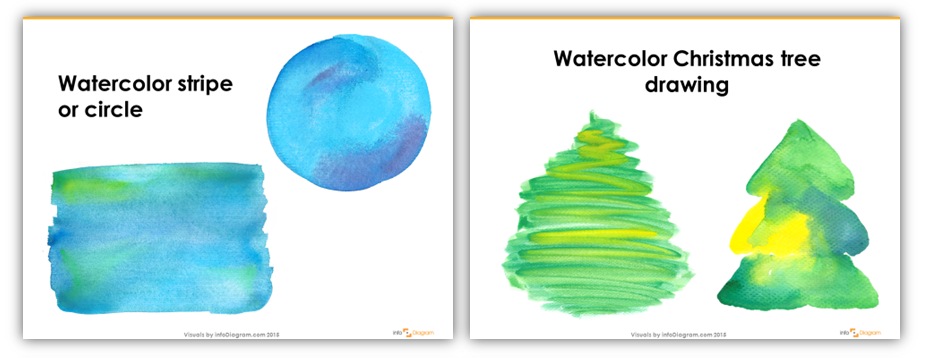
First, choose a nice slide background. Use something simple so you can place text on it. It can be a plain, one-color fill. Or to make it unique, I’d suggest a watercolor stripe:
Step 2: Personalize your card
Then add your message:

Try using a decorative typeface, such as Amatic (which you can download for free at FontSquirrel):

You can also add your logo and some decorations. Just don’t overdo it; keep it simple and clean! Here are examples of cards I created using some hand drawn icons that our designer prepared (we share it as a free gift for you).
Step 3: Export as a graphic
When you’re done, export the slide as a picture. Use PowerPoint’s Save As command and choose JPG bitmap image format. Then use the exported picture as the seasonal email attachment, print it or add to your blogs.
Not that hard, isn’t it? Give it a try!
Check our step-by-step guide on Slideshare:
About Peter
 Peter Zvirinsky is co-founder of InfoDiagram.com Peter is a big fan of simple visual communication – especially passionate about using diagrams instead of text. That’s why he launched a company sharing graphical resources for presentation design. Before starting his own business, he had been a trainer and head of marketing in data analytics consultancy. There he learned the importance of explaining complex things by simple infographic diagrams
Connect with Peter at twitter @Peter_iDiagram or LinkedIn.
You must be logged in to post a comment.