
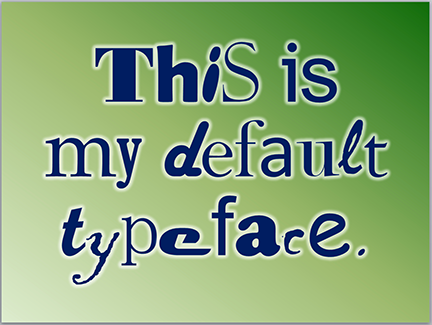
 A colleague of mine told me that one of his clients wanted to know how to set a default typeface for all new PowerPoint documents. This client recognized the need for a consistent look for the PowerPoint decks his company produces. Bravo!
Fortunately, if you already have a corporate PowerPoint template it’s very easy to set a default typeface. In fact, most of it’s been done for you because corporate templates are already set up to use particular typefaces in the title and text blocks. But what do you do when you’ve got some rogue operator who wants to add a bunch of his own text blocks to the slide?
How to set default fonts
Slide masters are set up so that all of the usual text boxes—titles, content, etc.—use specific fonts, weights, and sizes. The reason for this is to make using a template idiot-proof. Trouble is, a new kind of idiot comes along and creates new text boxes that aren’t part of the template, possibly adding new typefaces.
But to get around this, all you need to do is to create a default text box style in your template. Here’s how:
- Open the template and create a text box.
- Type a word.
- Double-click on the word to select it, then set it to whatever you want the default type style to be. Select the font you want, the color, the alignment, the size, the space between the letters—anything you want to become the default.
- When you’re done, right click on the text box to select it, then choose “Set as Default Text Box” on the pop-up menu.
- Delete the text box, then save the file as a template (.potx).
Now, whenever someone uses that template to create a new presentation, the default text box will have the settings you’ve just created.
Is it foolproof?
Heck, no. The type attributes can always be changed on any text box. But at least it’s a step in the right direction.
Why it’s important
Companies spend a lot of money establishing their brands. Why? Because doing so is the key to differentiation, that which makes one company rise above the rest and be more attractive to consumers. Brands are reinforced by a company’s marketing mix—the combination of all of the different kinds of marketing that it produces. The marketing mix includes websites, commercials, vehicle graphics, packaging, white papers, case studies, Twitter home pages, uniforms, email signatures…in short, anything that can be branded. Any single component of the marketing mix should be easy to identify as coming from that particular company. This consistency is essential for building a brand identity.
Of course, PowerPoint presentations are also a part of this marketing mix since they are brandable communication designed to influence an audience to take action. So why in the world do some people play fast and loose with their decks, using any old typeface they like, diluting the brand? It’s because they don’t know any better. But you do.
Keep it professional, stick to the corporate typefaces, and stay away from Comic Sans.
Laura,
Your articles are always interesting to read. And regarding “Comic Sans”, LOL, I actually happen to appreciate that fun font-but only in the right context!
Keeping it professional,
Thanks,
Carol
Yeah, Comic Sans does have its place. In the right context it can actually be a force for good!
Thank you!
Have been trying to solve EXACTLY this problem for some time now, and all other explanations and fixes online didn’t work. So simple, yet so hard to figure out.
What about modifying default fonts set by others?
To change the default typeface, you have to both edit the Slide Master and set a new default text box.
First, go to the Slide Master of the file you wish to change. Change the typeface on all of the text boxes that appear on the first slide. Then go through every layout to ensure that the correct typeface appears in all text boxes.
After that, return to the Normal View. Create a new text box, type something into it, then select the text and change it to the typeface you want and the point size you think you’ll use most often. Then right-click on the text box to select it and click on “Set as Default Text Box.” Now whenever you create a new text box it will use the correct typeface.
Thanks very much.
Giacomo.
Happy to help!
The mentality of this article is precisely why microsoft’s products are JUNK. It’s not an idiot who wants to change the default fonts, layouts and misc assorted horse-crap that comes with all microsoft products. It’s someone who has requirements that differ from what’s forced down your throat with these software programs.
Obviously microsoft hasn’t researched what is used in scientific publications, because if they had, they wouldn’t make it so very difficult to get a document into the formats that are required for scientific publication. The graphs and charts are particularly horrendous (and with every “improvement” they keep screwing it up worse).
ATTN: narcissistic business majors/marketing majors: there are other people in the world besides yourselves. Some of us even have the mental facilities to choose our own damn fonts.
It sounds like your difficulty lies in not having the right themes to suit your needs or that once you’ve established them you have to change them whenever a new release of Office comes out.
It’s possible to create extremely customized themes and style guides that will help you with all of the different layout styles your work needs to conform to for publication. But it must be very frustrating when different publications require different formats.
Using the specified theme typeface in corporate presentations, such as those used for sales or training, helps the slides to conform to the brand guidelines. When people use different typefaces than the ones specified in the theme, their presentations start to look less professional.
I don’t know what conventions exist for scientific presentations because my experience is mainly corporate. But a good rule of thumb in either field is to choose one or two typefaces for a presentation and stick with them.